Laptop Plugged In Not Charging? 7 Fixes That Actually Work
LaptopRadar is reader-supported. When you buy through links on our site, we may earn an affiliate commission at no extra cost to you. It never affects our scores. Learn more

Laptop Plugged In Not Charging:
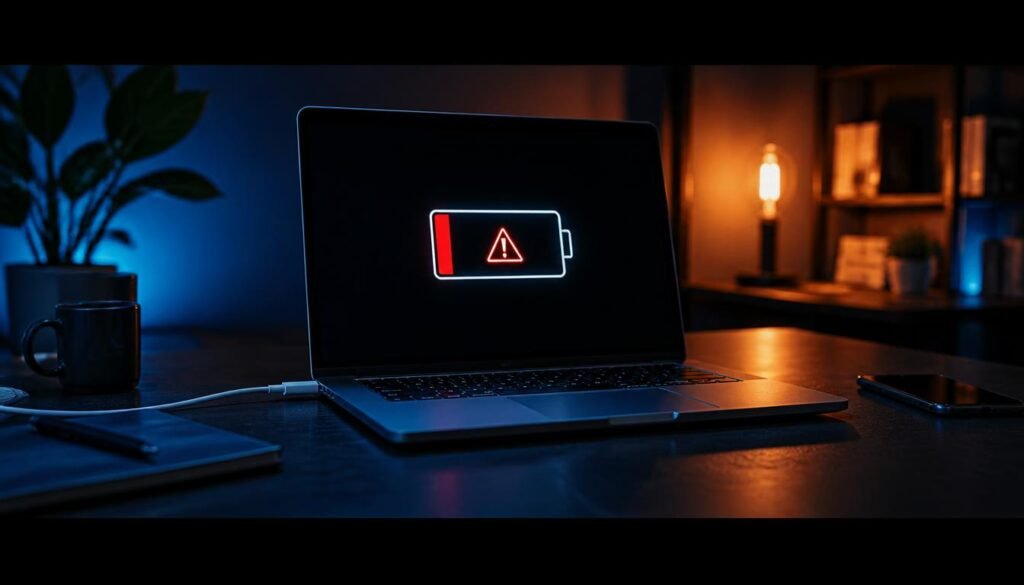
If your laptop says “plugged in, not charging,” the battery is usually fine. In most cases it’s a driver conflict, a dirty port, or a power setting that quietly capped the charge. Here’s how to find out which one it is.
1. Check the charger and the outlet first
Plug the charger into a different outlet. Then feel the power brick — if it’s completely cold after ten minutes, the adapter has likely failed. Most laptop chargers last three to four years under daily use.
2. Reset the battery driver
This fixes it more often than anything else on the list.
- Right-click Start, open Device Manager
- Expand Batteries
- Right-click Microsoft ACPI-Compliant Control Method Battery
- Select Uninstall device
- Restart your laptop
Windows reinstalls the driver on boot. Your charge percentage should start moving again.
3. Do a hard power reset
Shut down completely, unplug the charger, and remove the battery if your model allows it. Hold the power button for thirty seconds, then reconnect everything. This drains residual charge from the motherboard and clears stuck power states.
4. Clean the charging port
Lint packs into charging ports over months, especially on laptops carried in backpacks. Shut the laptop down and use a wooden toothpick — never metal — to gently clear the port. Compressed air helps afterward.
5. Check for a battery charge limit
Lenovo, ASUS, and Dell all ship utilities that cap charging at 60 or 80 percent to extend battery lifespan. If you’ve ever opened Lenovo Vantage, MyASUS, or Dell Power Manager, check whether conservation mode is switched on. This setting is the single most common false alarm.
6. Update BIOS and chipset drivers
Go to your manufacturer’s support page, enter your service tag or serial number, and install the latest BIOS. Power management is handled at the firmware level, and outdated BIOS versions cause charging failures on several HP and Dell models.
7. Test the battery health report
Open Command Prompt as administrator and run:
powercfg /batteryreportWindows saves an HTML file showing design capacity versus current full-charge capacity. If the current capacity is below 60 percent of design capacity, the battery is worn out and no software fix will help.
When it’s a hardware problem
If the battery report shows healthy capacity, the charger is warm, the port is clean, and the driver reset changed nothing, the charging circuit on the motherboard has likely failed. That’s a repair shop job — typically 80 to 150 dollars depending on the model.
Start with the driver reset and the charge limit check. Between them, they solve this for most people in under five minutes.

1 reader comment