Laptop Battery Not Detected on Windows 11? 8 Easy Fixes to Try First
LaptopRadar is reader-supported. When you buy through links on our site, we may earn an affiliate commission at no extra cost to you. It never affects our scores. Learn more
Laptop Battery Not Detected on Windows 11?
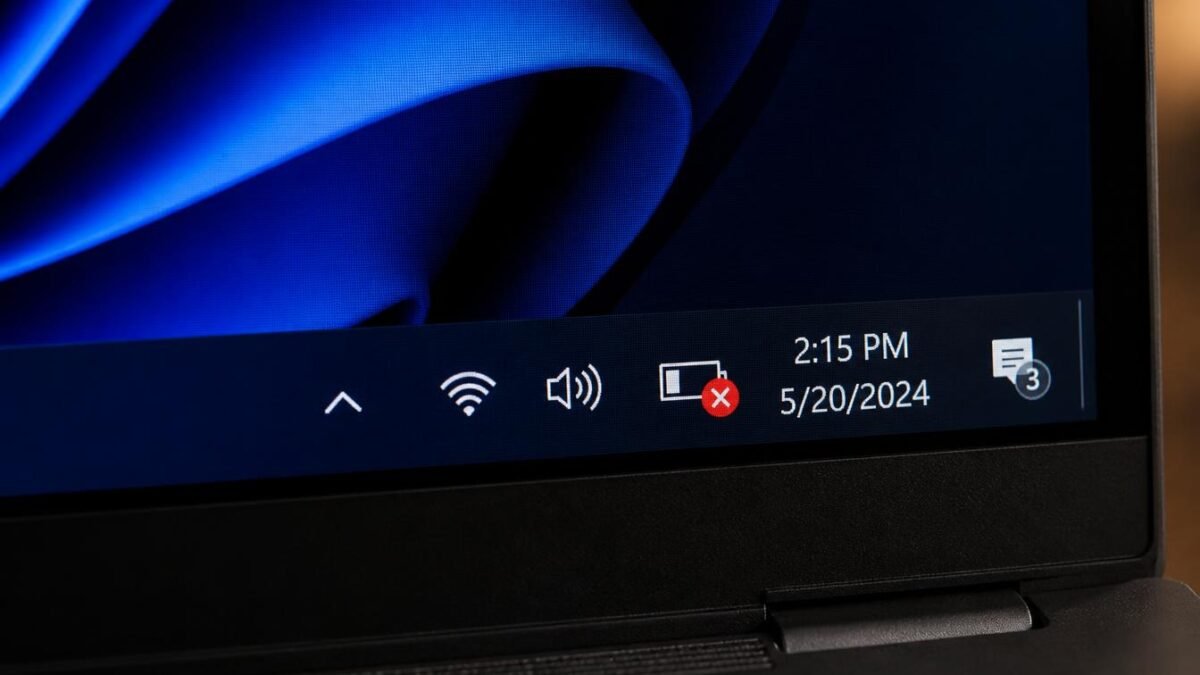
A battery icon with a red X, or a message saying “No battery is detected,” usually means Windows has lost communication with the battery controller. The battery itself is often fine.
1. Reinstall the battery driver
This resolves the problem more often than anything else on the list.
Right-click Start and open Device Manager. Expand Batteries. You should see two entries: a Microsoft AC Adapter and a Microsoft ACPI-Compliant Control Method Battery.
Right-click the ACPI-Compliant Control Method Battery entry and choose Uninstall device. If both battery entries are present, uninstall both. Then restart the laptop.
Windows reinstalls these drivers automatically on boot. The battery icon typically returns to normal immediately.
If the ACPI-Compliant Control Method Battery entry is missing entirely, click Action in the Device Manager menu and choose Scan for hardware changes.
2. Perform a hard reset
This clears residual charge from the motherboard and resets the power controller.
Shut down completely. Unplug the charger. If your battery is removable, take it out. Hold the power button down for thirty to sixty seconds. Reconnect the battery, then the charger, and power on.
On laptops with internal batteries, some manufacturers provide a dedicated reset pinhole on the underside. Check your manual.
3. Reseat the battery connector
If you are comfortable opening the laptop, remove the bottom panel and check that the battery ribbon connector is fully seated on the motherboard. Connectors work loose over time, especially on laptops that get carried frequently.
Disconnect and reconnect it firmly. Always disconnect the battery before doing anything else inside a laptop.
4. Update the BIOS
Battery detection is handled at firmware level. Outdated BIOS versions cause detection failures on several Dell, HP, and Lenovo models, and manufacturers have shipped specific fixes for this.
Go to your manufacturer’s support page, enter your service tag or serial number, and install the latest BIOS. Keep the laptop plugged in throughout the update and do not interrupt it.
5. Run the manufacturer’s diagnostic
Dell SupportAssist, HP Support Assistant, Lenovo Vantage, and MyASUS all include hardware battery tests that read the controller directly, bypassing Windows.
If the manufacturer tool also reports no battery, the fault is more likely hardware. If it detects the battery normally while Windows does not, the problem is software.
6. Check the power troubleshooter
Open Settings, go to System, then Troubleshoot, then Other troubleshooters. Run the Power troubleshooter. It occasionally catches misconfigured power settings that block detection.
7. Test with a different charger
A failing adapter can cause intermittent detection problems, particularly if it delivers unstable voltage. Borrow a known-good charger with matching voltage and see whether detection returns.
8. Check for a swollen or damaged battery
If the trackpad feels stiff, the laptop rocks on a flat surface, or the bottom panel bulges, the battery has swollen. Swollen cells can lose connection and fail detection.
Stop using the laptop and have it inspected professionally. Do not attempt to remove a swollen battery yourself.
When it genuinely is the battery
If the driver reinstall, hard reset, BIOS update, and manufacturer diagnostic all fail to detect the battery, the cell or its internal protection circuit has failed. Lithium batteries have controllers that permanently disable the pack when they detect a fault, and this is not recoverable.
A battery that has been deeply discharged and left unused for many months sometimes enters this state permanently.
Frequently asked questions
Can I keep using the laptop without a detected battery? Yes, if it runs on mains power. Some models throttle performance without a battery present. Be aware that any power interruption causes an immediate shutdown.
Does the red X mean the battery is dead? Not necessarily. It means Windows cannot communicate with it. Driver issues account for a large share of these errors.
Why did this happen after a Windows update? Updates occasionally replace or corrupt the ACPI battery driver. The uninstall-and-restart fix in step one is designed for exactly this.
Will resetting Windows fix it? Only if the cause is software, and the driver reinstall achieves the same result far faster. Do not reset Windows before trying steps one through five.
Try the driver reinstall first. It takes two minutes and solves this for most people.



Ask a question or share your experience